

1
Create a free Formbricks Cloud account
While you can self-host Formbricks, the quickest and easiest way to get started is with the free Cloud plan. Just sign up here and click through the onboarding.
2
Open Web & Mobile SDK
In your workspace, go to Settings and open Web & Mobile SDK under Workspace. Workspace details holds the two values the SDK needs — your Workspace ID and your SDK Connection URL — and the Connection status card tells you whether Formbricks has heard from your app yet.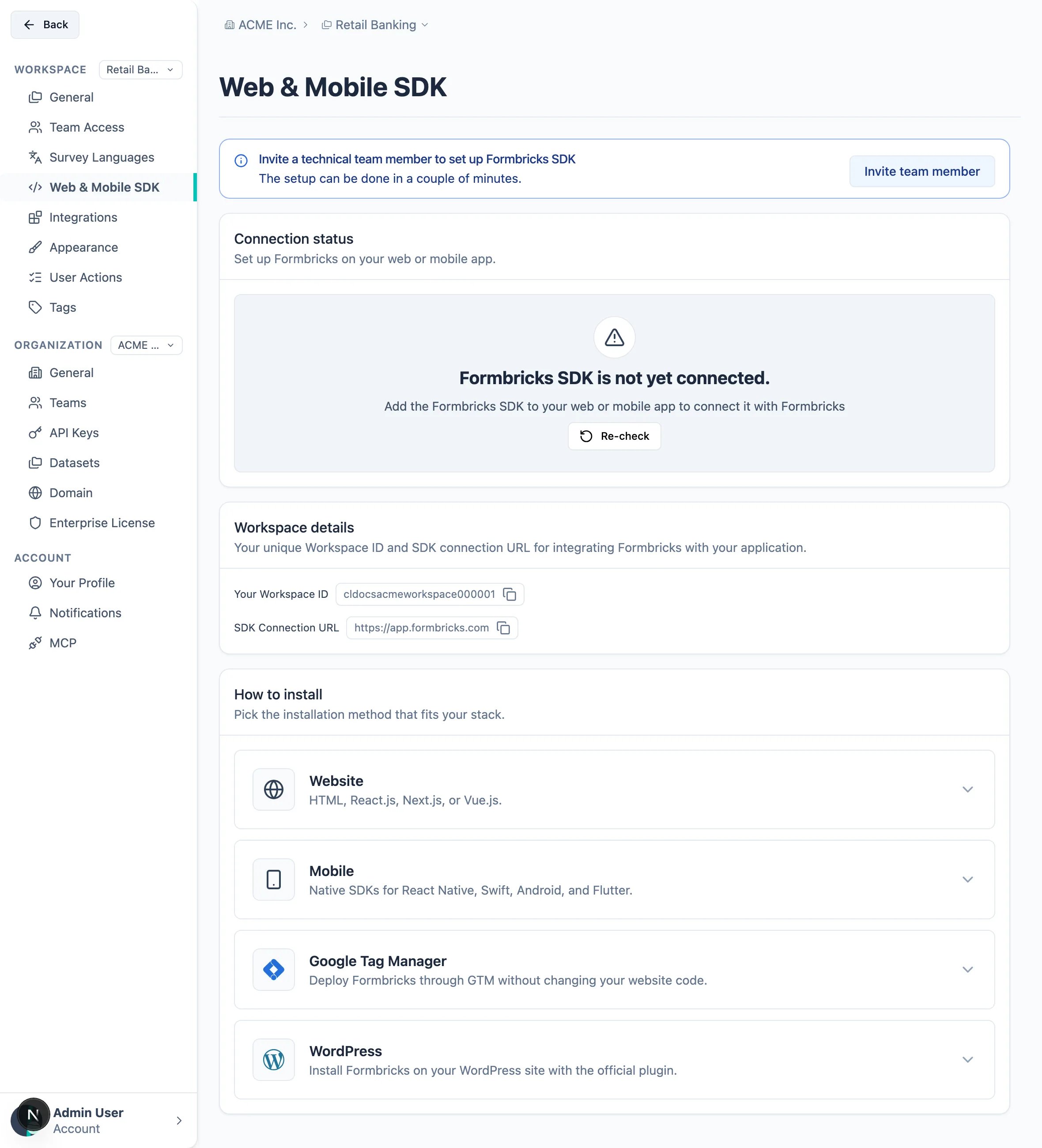
Not the person who will add the SDK? The banner at the top of the page invites a technical team member into the organization so they can do this step for you.
3
Add the Formbricks SDK to your app
Under How to install, expand the method that matches your stack: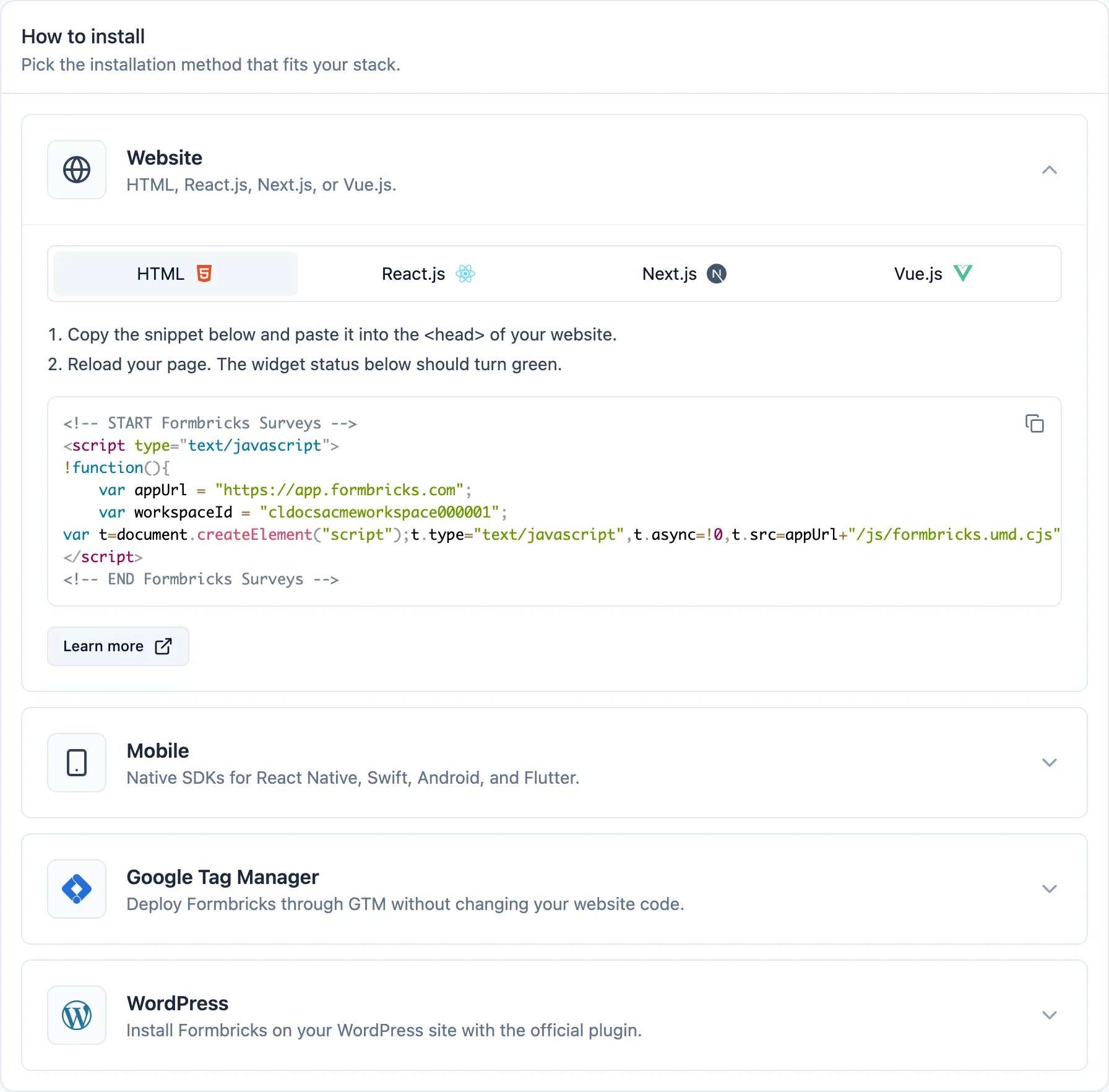
Each method gives you a handful of numbered steps and a snippet that already carries your Workspace ID and SDK Connection URL, so there is nothing left to fill in. For plain HTML, paste the snippet into the
<head> of every page of your website.4
Confirm the connection
Open the website or launch the app you added the SDK to, then come back to Web & Mobile SDK and hit Re-check. Once Formbricks has the first data point, the Connection status card turns green: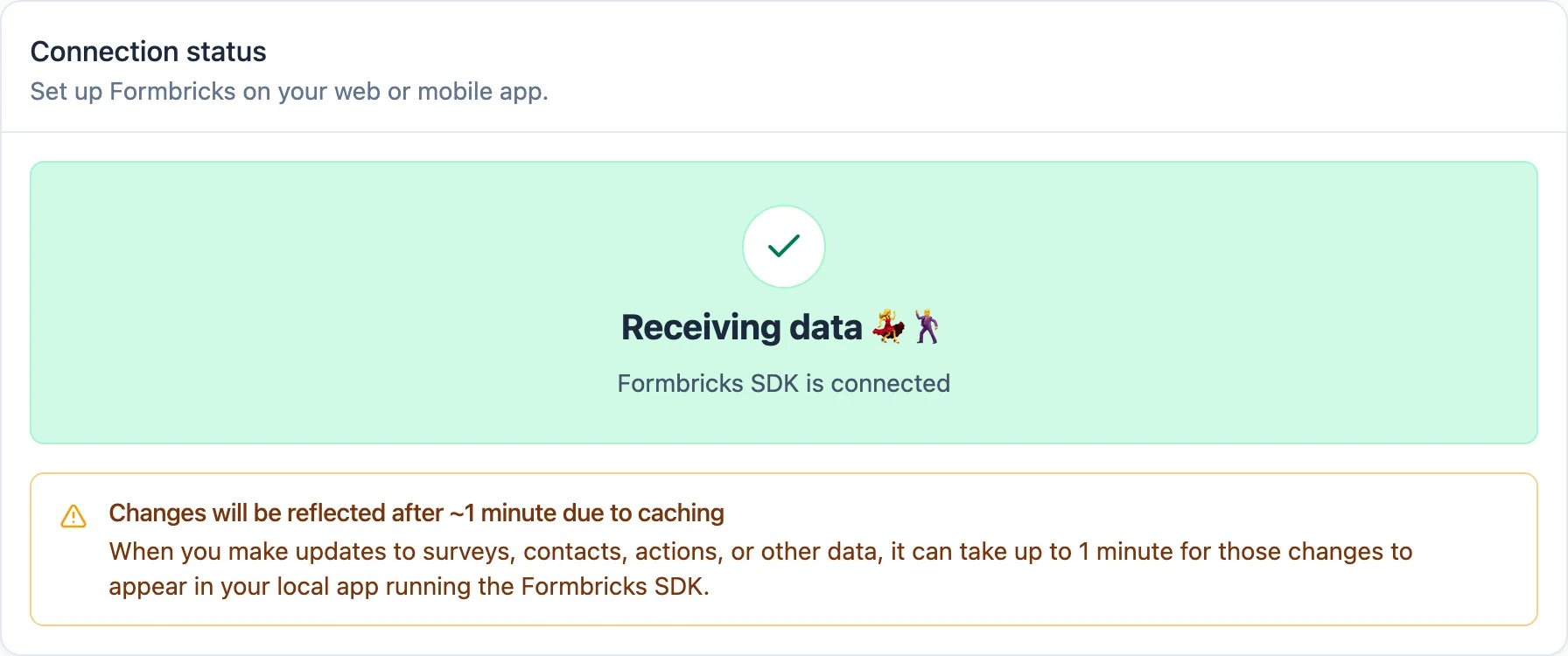
Still grey? The card only re-reads the status on Re-check or a page reload, so give the SDK a moment and check again. If it stays grey on the web, turn on Debug Mode and read your browser console. On mobile, check your platform’s log output instead — the Xcode console, Logcat, or your Metro or Flutter console.
5
Create your first survey
Head back to Surveys, click New Survey and pick a template. Then open the Settings tab of the editor and set Survey Type to Website & App Survey — that is what makes the survey run inside your app instead of on a shareable link.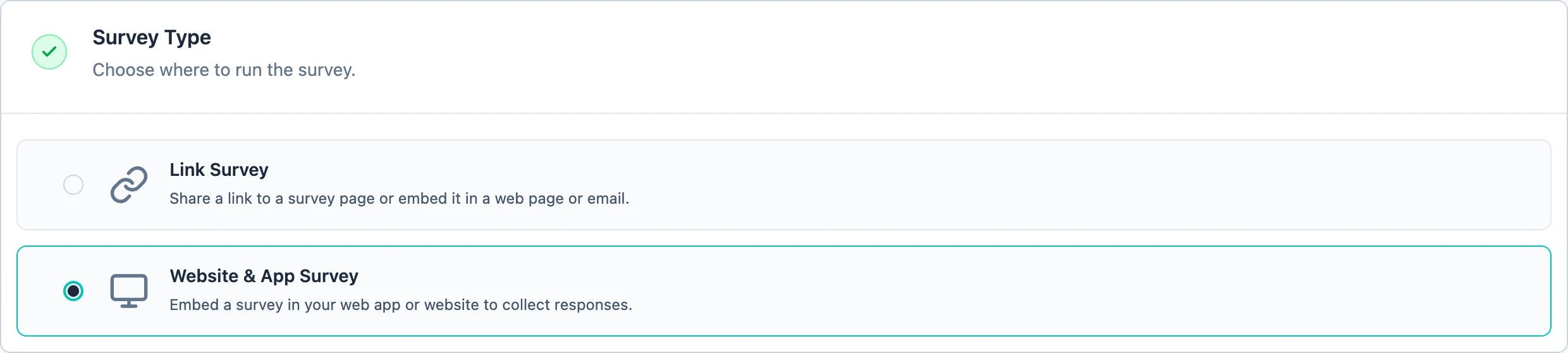
6
Create trigger to show survey
Still in the Settings tab, scroll to Survey Trigger and click Add action. On the Capture new action tab, name the action, choose Page View and click Create action. The survey now appears whenever the Formbricks widget detects a page load.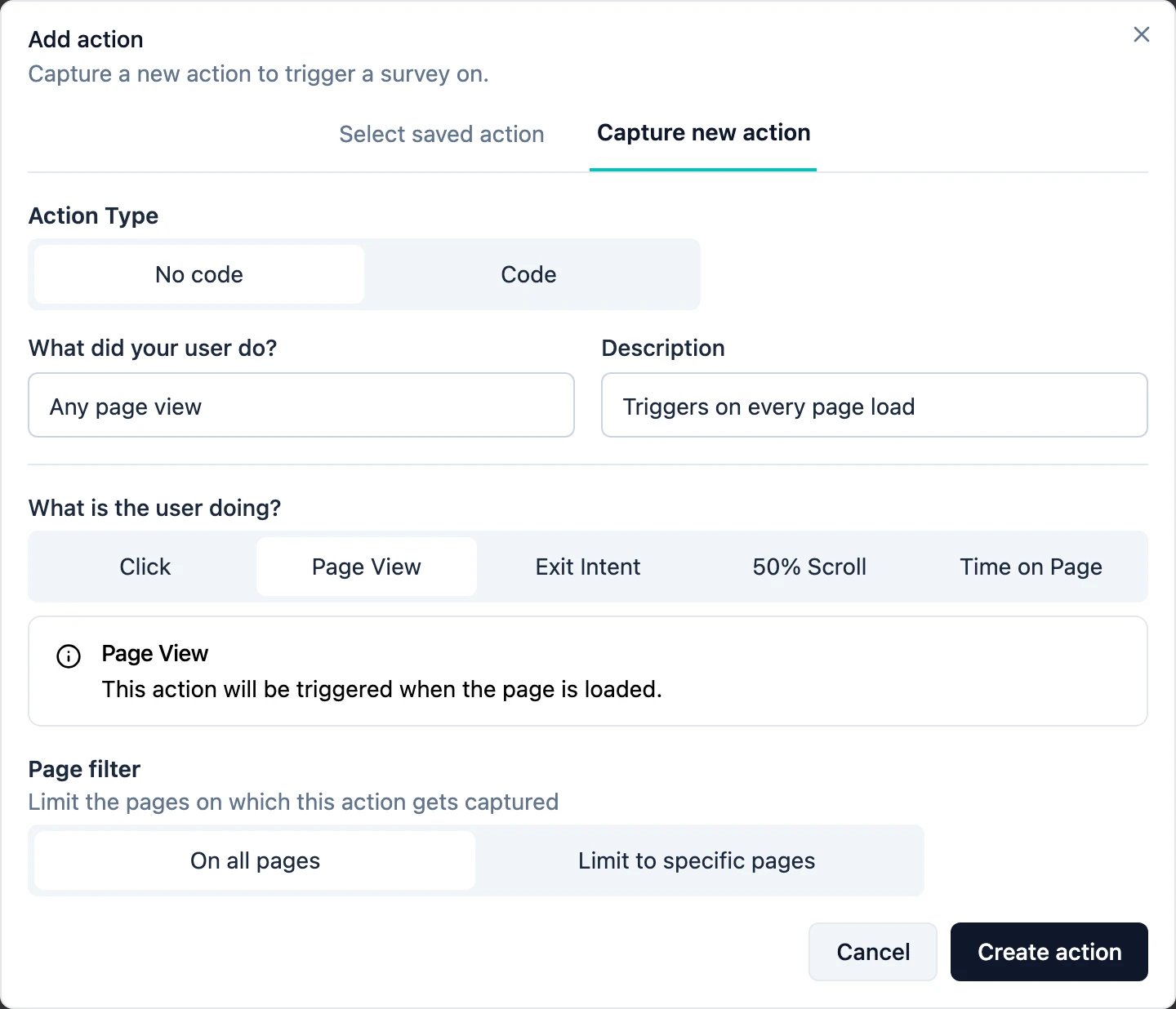
7
Set Recontact Options right
A common hiccup is users seeing one survey but it doesn’t appear again. This is due to the default settings we chose to avoid survey fatigue. While setting up, open Display & Recontact and choose Ignore Cooldown Period and Keep showing while conditions match: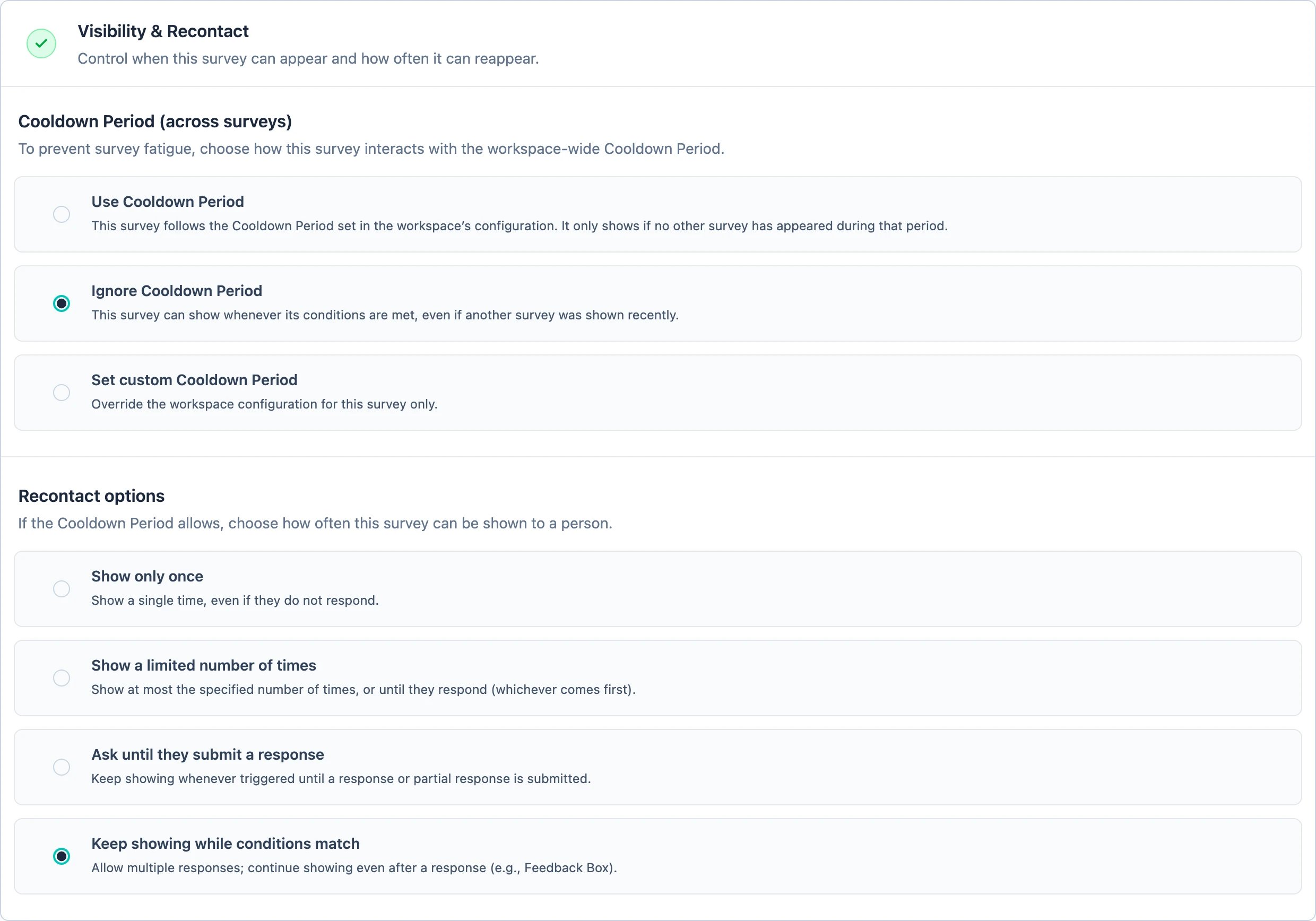
Please change this setting after testing your survey to avoid user fatigue.
8
Activate the survey
Activate the survey to make it available for the SDK to pull into the website or app where you want to show
it.
9
Understand caching behavior
For better scalability, we cache the request the SDK makes to the server. This allows you to use Formbricks
on websites with millions of visitors without high hosting cost.For troubleshooting, you can enable Debug
Mode to see detailed logs
in your browser console.
Important: Any changes to surveys, action classes, or Workspace settings will
take up to 1 minute to reflect in your app/website due to server-side caching. This includes survey
modifications, new triggers, styling changes, and other updates.
10
Check browser compatibility
Formbricks is designed to work with all modern browsers. Please ensure your users are using a supported version:
Internet Explorer is not supported.