Easily add the Formbricks App Survey SDK to your app with guides for different frameworks.
Integrate the Formbricks App Survey SDK into your app using multiple options. Explore the available choices below. If you need something else, open a GitHub Discussion, and we’ll be happy to help!
Important for Self-Hosted Setups:Multi-Domain Setup: If you are using the multi-domain setup, the appUrl parameter in all SDK configurations should point to your public domain (PUBLIC_URL environment variable). This is the domain where surveys and public-facing content are served, which may be different from your admin interface domain (WEBAPP_URL).Single Domain Setup: If you are using the single domain setup, the appUrl parameter in all SDK configurations should point to your admin domain (WEBAPP_URL environment variable).
HTML
All you need to do is add three lines of code to your HTML script, and that’s it!
React.js
Load our JavaScript library with your environment ID, and you’re ready to
go!
Next.js
Natively add us to your Next.js project, with support for both App and Pages project
structure.
Vue.js
Learn how to use Formbricks’ Vue.js SDK to integrate your surveys into Vue.js applications.
React Native
Easily integrate our SDK with your React Native app for seamless survey
support.
Swift
Use our iOS SDK to quickly integrate surveys into your iOS
applications.
Android
Integrate surveys into your Android applications using our native Kotlin
SDK.
All you need to do is copy a <script> tag to your HTML head:
Copy
<!-- START Formbricks Surveys --><script type="text/javascript">!function(){ var appUrl = "https://app.formbricks.com"; // use PUBLIC_URL if you are using multi-domain setup, otherwise use WEBAPP_URL var environmentId = "<your-environment-id>";var t=document.createElement("script");t.type="text/javascript",t.async=!0,t.src=appUrl+"/js/formbricks.umd.cjs";var e=document.getElementsByTagName("script")[0];e.parentNode.insertBefore(t,e),setTimeout(function(){window.formbricks.setup({environmentId: environmentId, appUrl: appUrl})},500)}();</script><!-- END Formbricks Surveys -->
Install the Formbricks SDK using one of the following package managers: npm, pnpm, or yarn.
Note that zod is required as a peer dependency and must also be installed in your project.
npm
Copy
npm install @formbricks/js zod
pnpm
Copy
pnpm add @formbricks/js zod
yarn
Copy
yarn add @formbricks/js zod
Update your App.js/ts file to initialize Formbricks.
src/App.js
Copy
// other importsimport formbricks from "@formbricks/js";if (typeof window !== "undefined") { formbricks.setup({ environmentId: "<environment-id>", appUrl: "<app-url>", // use PUBLIC_URL if you are using multi-domain setup, otherwise use WEBAPP_URL });}function App() { // your own app}export default App;
Next.js projects use either the App Directory or the Pages Directory. Since the Formbricks SDK runs on the client side, follow these steps based on your setup:
App Directory: Create a new component in app/formbricks.tsx and call it in app/layout.tsx.
Pages Directory: Initialize Formbricks directly in _app.tsx.
Code snippets for the integration for both conventions are provided to further assist you.
First, initialize the Formbricks SDK to run only on the client side. To track page changes, register the route change event with the Next.js router.Next, go to the Validate Your Setup section to verify your setup!
Integrating the Formbricks SDK with Vue.js is easy. We’ll ensure the SDK is only loaded and used on the client side, as it’s not meant for server-side use.
npm
Copy
npm install @formbricks/js
pnpm
Copy
pnpm add @formbricks/js
yarn
Copy
yarn add @formbricks/js
src/formbricks.js
Copy
import formbricks from "@formbricks/js";if (typeof window !== "undefined") { formbricks.setup({ environmentId: "<environment-id>", appUrl: "<app-url>", // use PUBLIC_URL if you are using multi-domain setup, otherwise use WEBAPP_URL });}export default formbricks;
src/main.js
Copy
// other importsimport formbricks from "@/formbricks";const app = createApp(App);app.use(router);app.mount("#app");router.afterEach((to, from) => { if (typeof formbricks !== "undefined") { formbricks.registerRouteChange(); }});
Install the Formbricks React Native SDK using one of the package managers, i.e., npm, pnpm, or yarn.
npm
Copy
npm install @formbricks/react-native
pnpm
Copy
pnpm add @formbricks/react-native
yarn
Copy
yarn add @formbricks/react-native
Now, update your App.js/App.tsx file to initialize Formbricks:
src/App.js
Copy
// other importsimport Formbricks from "@formbricks/react-native";const config = { environmentId: "<environment-id>", appUrl: "<app-url>", // use PUBLIC_URL if you are using multi-domain setup, otherwise use WEBAPP_URL};export default function App() { return ( <> {/* Your app content */} <Formbricks initConfig={config} /> </> );}
Minimum iOS Version: The Formbricks iOS SDK requires iOS 16.4 or higher.
Install the Formbricks iOS SDK using the following steps:Swift Package Manager
In Xcode choose File → Add Packages…
Enter your repo URL (e.g. https://github.com/formbricks/ios.git)
Choose version rule (e.g. “Up to Next Major” starting at 1.0.0).
Import in your code:
Copy
import FormbricksSDK
CocoaPods
Add the following to your Podfile:
Copy
platform :ios, '16.4'use_frameworks! :linkage => :statictarget 'YourTargetName' do pod 'FormbricksSDK', '1.0.0 (or the latest version)'end
Run pod install in your project directory
Import in your code:
Copy
import FormbricksSDK
Now start using FormbricksSDK
Copy
import FormbricksSDK// 1. Build your config (you can also inject userId + attributes here)let config = FormbricksConfig.Builder( appUrl: "https://your‑app.bricks.com", // use PUBLIC_URL if you are using multi-domain setup, otherwise use WEBAPP_URL environmentId: "YOUR_ENV_ID" ) .setLogLevel(.debug) .build()// 2. Initialize the SDK (once per launch)Formbricks.setup(with: config)// 3. Identify the userFormbricks.setUserId("user‑123")// 4. Track eventsFormbricks.track("button_pressed")// 5. Set or add user attributesFormbricks.setAttribute("blue", forKey: "favoriteColor")Formbricks.setAttributes([ "plan": "pro", "tier": "gold"])// 6. Change language (no userId required):Formbricks.setLanguage("de")// 7. Log out (no userId required):Formbricks.logout()// 8. Clean up SDK state (optional):Formbricks.cleanup(waitForOperations: true) { print("SDK torn down")}
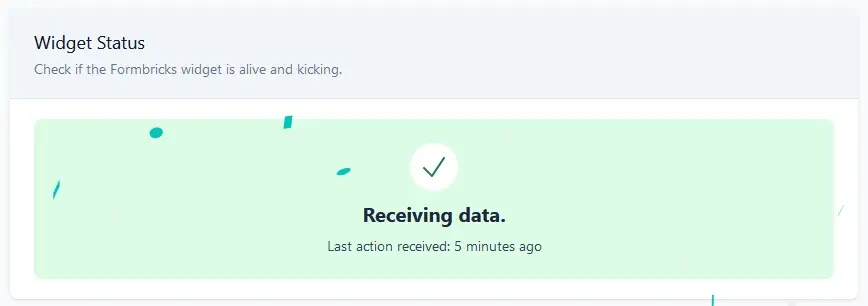
Once you’ve completed the steps above, validate your setup by checking the Setup Checklist in the Settings. The widget status indicator should change from this:
To this:
The debug mode is only available in the JavaScript SDK and works exclusively in the browser. It is not
supported in mobile SDKs such as React Native, iOS, or Android.
Enabling debug mode in your browser can help troubleshoot issues with Formbricks. Here’s how to activate it and what to look for in the logs.


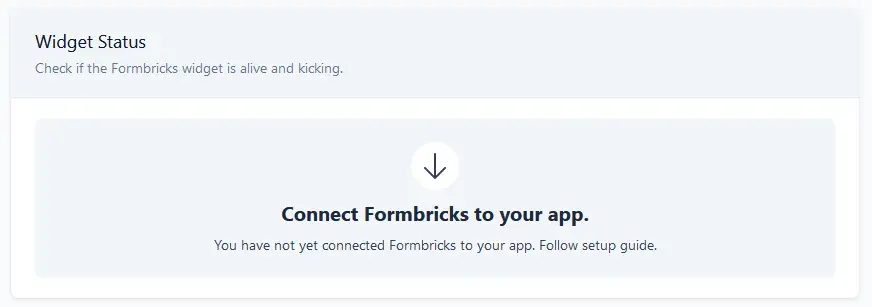 To this: