

This metadata is the reserved half of Embedded Data: no survey has
to declare it, and all of it reaches filters and exports by name. Only what the browser captures can be
used in logic and recall while the survey runs; server-derived fields such as
country and
durationSeconds are set once the response arrives. Which entries actually carry a value depends on the
survey type and its settings — see the note below. The full catalog, and the
Anonymize toggle that suppresses the privacy-sensitive entries, are on Reserved
fields. The survey editor’s Embedded Data card and Settings
→ Workspace → Embedded Data both list them alongside the fields you declare yourself.Metadata Captured
-
Source: Where the respondent came from. A link survey opened with
?source=records that value; without one it records the survey’s type,linkorapp. See Source Tracking. - URL: The URL of the page where the user filled the survey.
- Browser: The browser used by the user to fill the survey.
- OS: The operating system of the device used by the user to fill the survey.
- Device: The device used by the user to fill the survey.
- Country: The country of the user.
- Action: The action that triggered the survey. This is only available for App surveys.
These seven are the ones shown by default. Formbricks captures more than twenty auto-captured fields
in total, including the page path, the campaign parameters, the screen and viewport size, the time zone
and the device locale. They sit in the response card’s Metadata popover, below the seven above, and
as switchable columns in the response table. Which of them actually land depends on the survey type and its settings — a mobile app
survey has no host page, so it records nothing for the page and campaign fields. See Reserved
Fields for the full catalog, what each survey type captures, and
what the Anonymize responses toggle suppresses.
View Response Metadata
Open the Responses tab of your survey and scroll the table to the right. Each metadata field is a column of its own, so a whole set of responses can be read at once.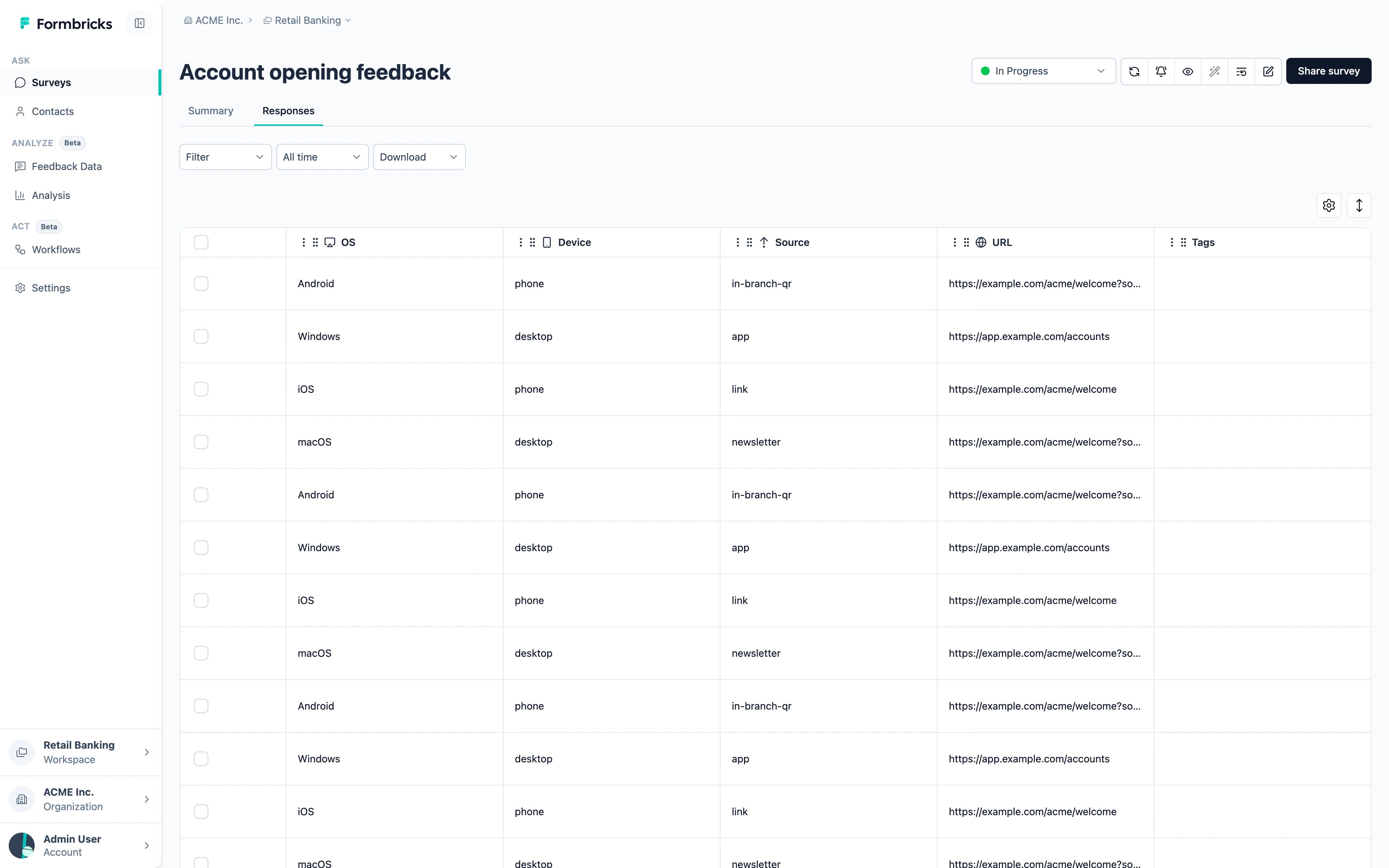
Filter Responses by Metadata
Filter, above the table, offers the same fields. Pick one, choose a condition and a value, and the table narrows to the responses that match — useful for questions like “what did the people who came from the newsletter say?”.Export Metadata
You can export the metadata of your responses along with the response data. When you export responses, you will see the metadata fields in the exported CSV file.Need help? Reach out in Github Discussions