

That difference is deliberate: a link is a public URL that must always render something, while an app survey
is targeted at a known user, and showing them a survey in a language they did not ask for is worse than not
showing it at all. See Which language a respondent sees for the full
rule.
Add languages to your workspace
Languages live on the workspace, so every survey in it can use the same list.1
Open the Survey Languages settings
Go to your workspace settings and open Survey Languages: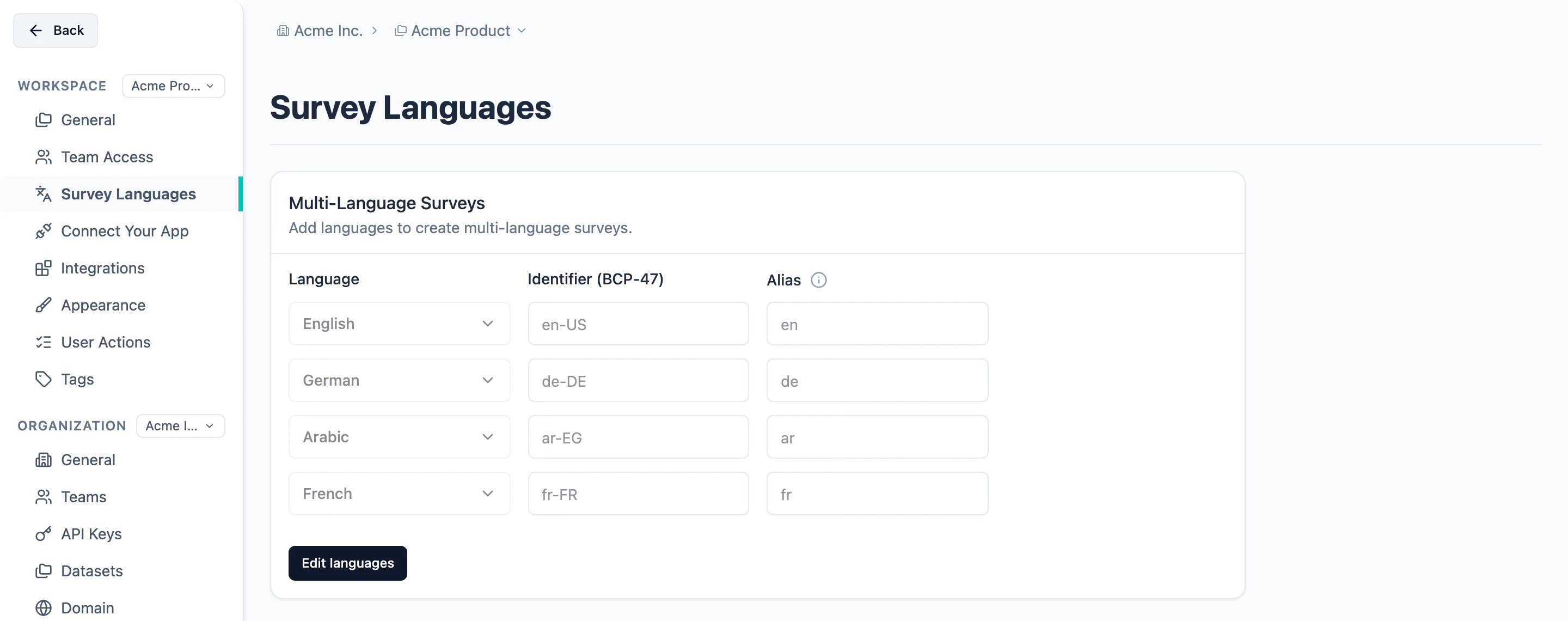
2
Add a language
Click Edit languages, then Add language, and pick the language from the dropdown. The
Identifier is filled in for you — it is the language’s BCP-47 tag, such as 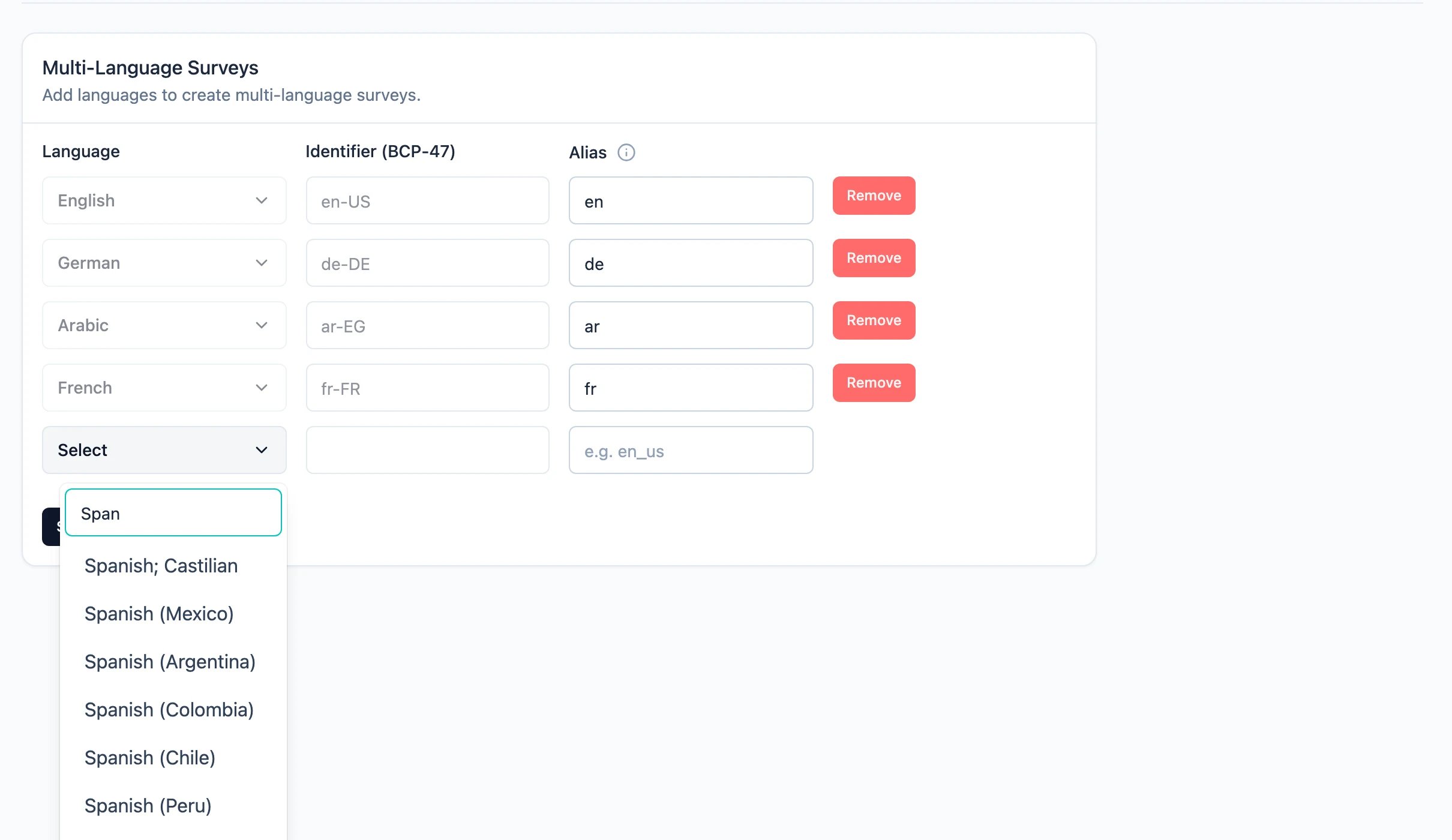
de-DE or ar-EG.en_us. A
bare two-letter code like de is rejected — it names a language of its own in the picker, so allowing it
as another language’s alias would make the two ambiguous. Click Save changes when you are done.The language itself and its identifier are fixed once the language is created — only the alias stays
editable. A language that is still used by a survey cannot be removed; Formbricks lists the surveys that
hold it so you can remove it there first.
Activate translations for a survey
1
Open the Language tab
Open the survey editor and switch to the Language tab.
2
Turn on Activate translations
Enable Activate translations and pick the survey’s default language. The default language is the
one your existing content is already written in.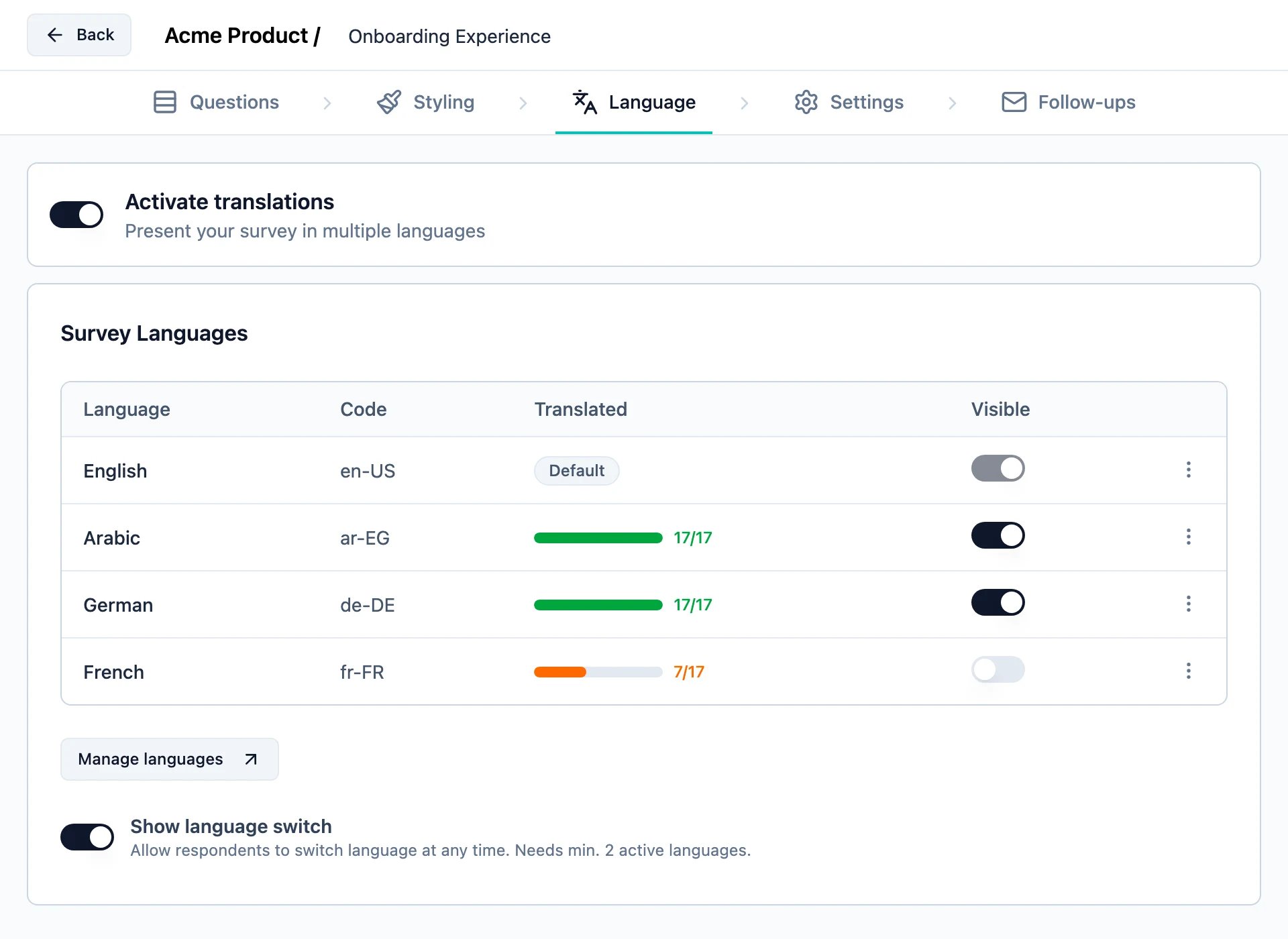
Choosing the default language is a one-way decision. To change it later you have to switch
Activate translations off, which deletes every translation on the survey.
3
Choose the languages shown
Every workspace language shows up as a row with its Code, a Translated progress bar, and a
Shown toggle. Turn Shown on for each language respondents should be able to answer in.A shown language must carry a translation for every required field before the survey can be
activated, and before further changes to an active survey can be saved. A draft saves
either way, so you can stop mid-translation and come back. If an active survey blocks you, turn
Shown off for the unfinished language — the translations you already entered are kept.
Translate your survey content
Once a language is switched on, click its row — or ⋮ → Manage translations — to open the translations editor for that language. It lists every translatable string side by side: the default language on the left, the target language on the right.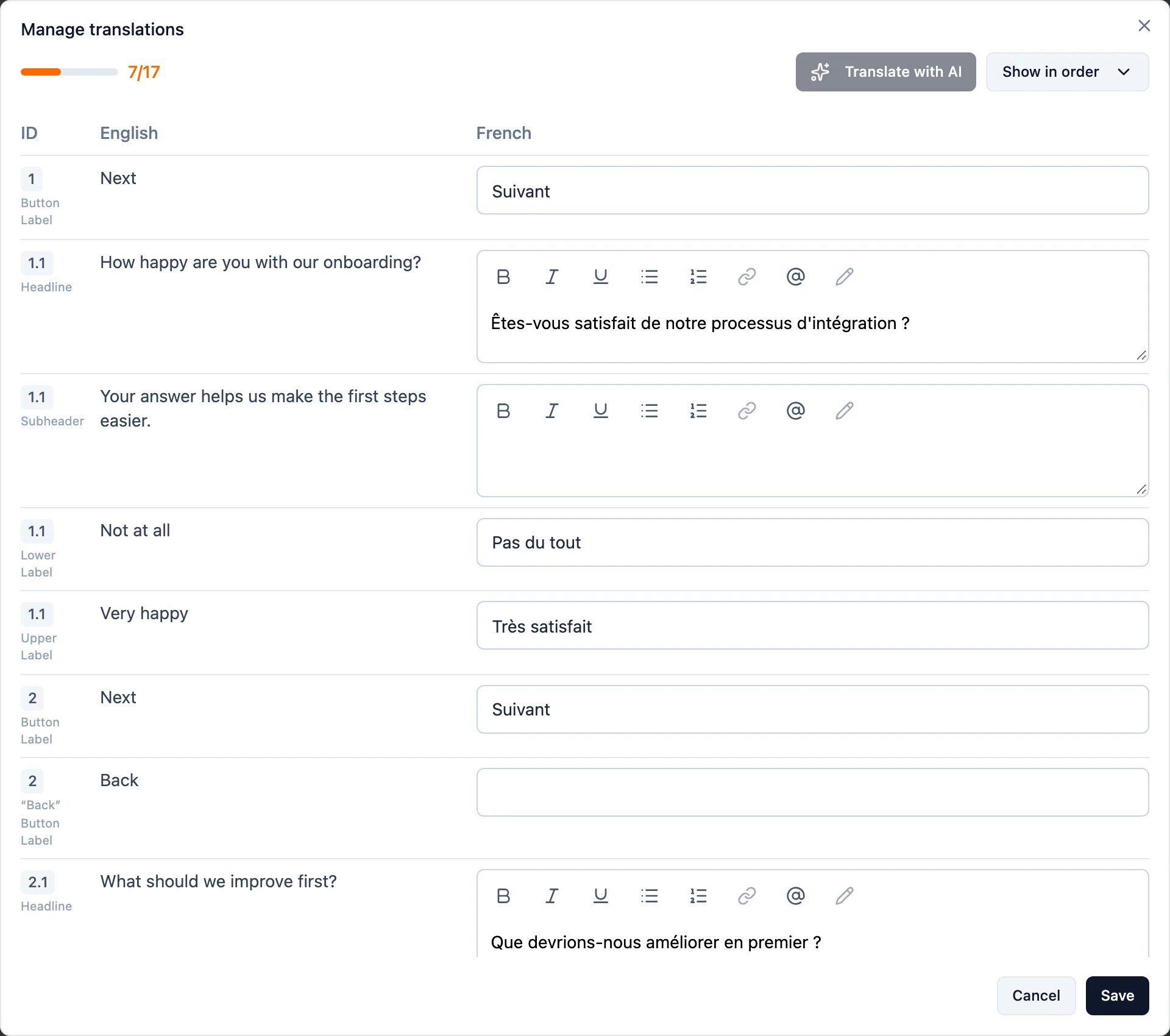
Translate with AI
Translate with AI fills in every empty field for the language you have open, in one pass — headlines, descriptions, choices, button labels and all. Strings you have already translated are left untouched, so you can run it again after adding a question and it will only fill the gap.1
Open the language you want to fill
Open Manage translations for that language. The button is active as long as there is at least one
empty field left to fill.
2
Click Translate with AI
The translations appear in the right-hand column, formatting and rich text included.
3
Review, then save
Read the result before you keep it — tone and product terms are the two things worth a second look — edit
anything you want to change, and click Save. That hands the translations back to the editor; they are
only stored once you save or activate the survey itself.
Translate with AI is an Enterprise feature. It needs Smart
functionality (AI) enabled for your organization and a configured AI instance — see
AI Features. Without it, the button is disabled and its tooltip says
which of the two is missing.
Translate by hand
Type your translations straight into the right-hand column of the same editor. Two things help on a long survey:- Missing first re-sorts the list so untranslated strings come first. Show in order puts it back into survey order.
- The ID column tells you where a string lives —
1.1is the first element of the first block,Wis the welcome card — so you can find it again in the editor.
Let respondents switch language
Turn on Show language switch in the Language tab to put a language picker in the survey itself, on every card, so respondents can change language at any point instead of only at the start. It needs at least two visible languages.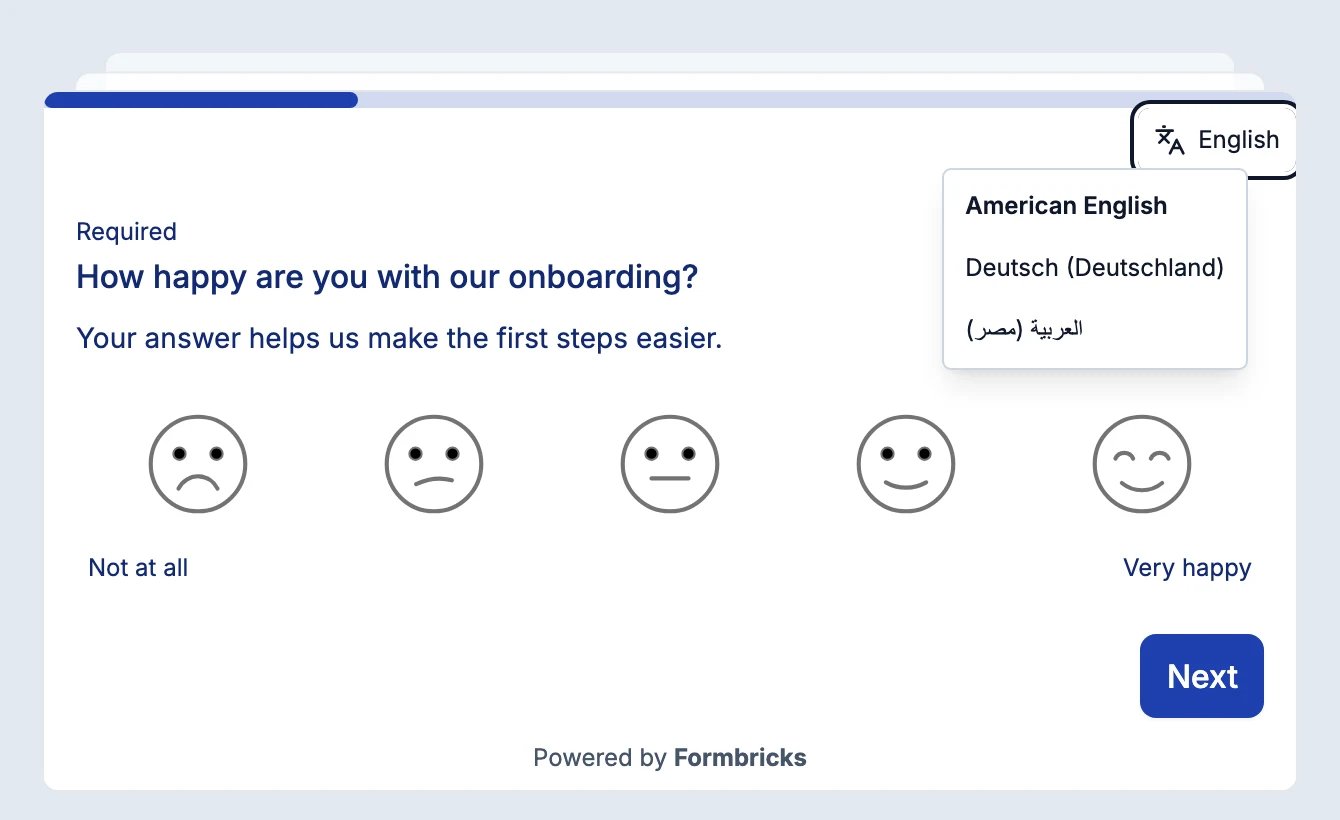
Use the respondent’s browser language
Turn on Use browser language by default in the Language tab, right below Show language switch, and a respondent who arrives without an explicit language sees the survey in their browser’s language — as long as that language is shown on the survey. If none of their browser languages is, the survey opens in its default language. The setting is switched on for you the first time you activate translations on a survey, and switched off again when you deactivate them. It needs at least two visible languages, and it works independently of the language switch: you can open the right language automatically without showing respondents a picker. For link surveys the browser language is read from the request itself, so the survey renders in the right language from the first paint, including when it is embedded on another site. For app and website surveys the SDK reads it from the browser.Which language a respondent sees
Formbricks picks the survey language in this order:- An explicit language. The
langURL parameter on a link survey, or the language you set withsetLanguage()for app and website surveys. - The browser language, only when Use browser language by default is on. Browser languages are tried in the respondent’s order of preference, and each one is matched fully before the next is tried.
- The survey’s default language.
- Link surveys fall through to the next step. A mistyped
?lang=xx, or a link to a language you have since hidden, opens in the browser language when the setting is on, and in the default language otherwise. - App and website surveys are the exception: the survey is skipped. If you called
setLanguage("fr")and the survey has no visible French, the user does not see it — even when their browser language would match. The browser language is only used when no language was set through the SDK.
How a language is matched
The same matching rules apply to thelang parameter, setLanguage() and every browser language. Matching
is case-insensitive, treats _ and - alike, and only ever considers languages that are shown on the survey —
plus the survey’s default language, which always matches. The first rule that finds a language wins:
The fourth rule keeps the writing script:
zh-TW reaches Traditional Chinese (zh-Hant-TW) and never
Simplified (zh-Hans-CN). It also works the other way round — ar-SA reaches a survey that only offers
ar-EG. When several variants of the same language are shown, the language’s main variant wins (ar-EG for
Arabic, de-DE for German), otherwise the first one in the survey’s language list.
Link surveys
A link survey renders in whatever language thelang URL parameter asks for:
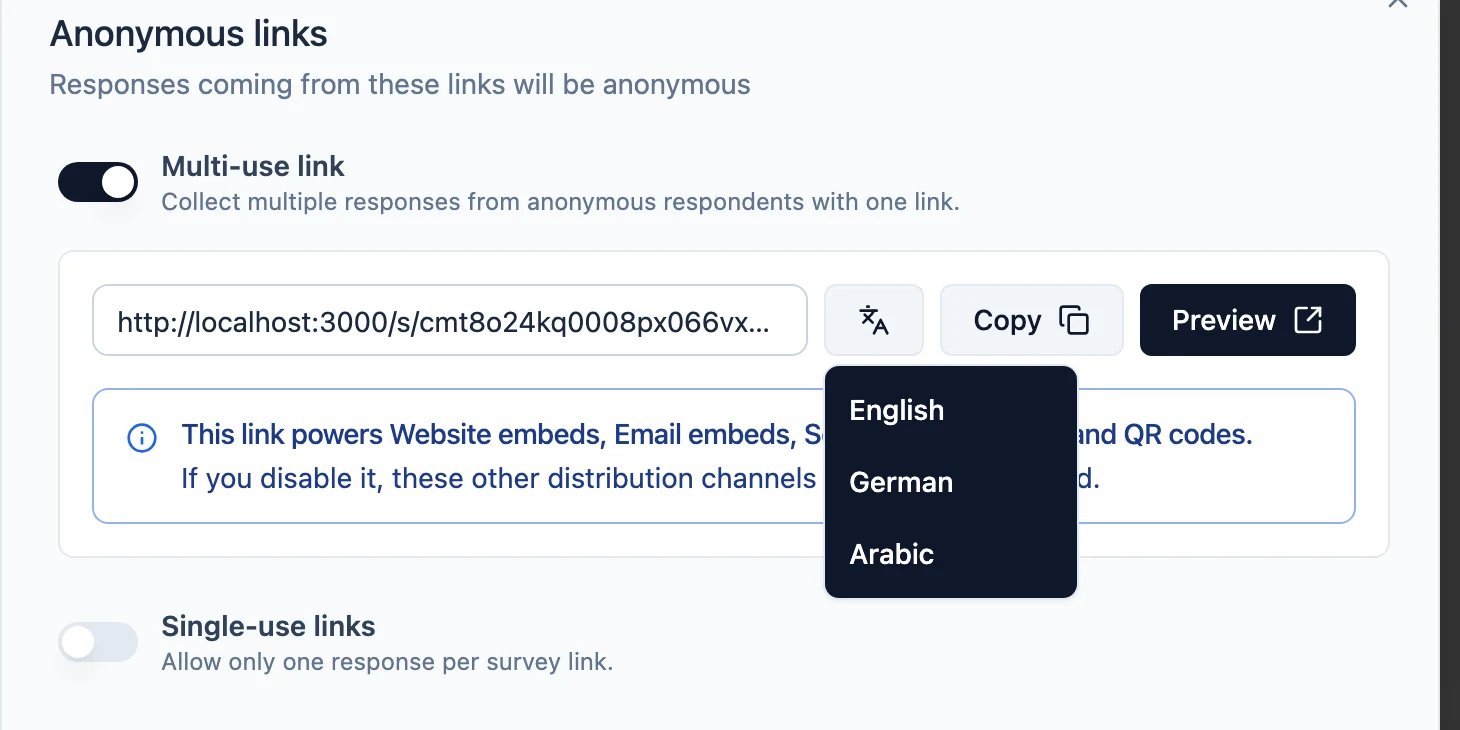
lang accepts the language’s identifier (de-DE), its alias, or any code that
matches one of them — ?lang=de reaches de-DE, ?lang=ar reaches ar-SA, and
an old ?lang=pt link still reaches a language since stored as pt-BR.
Without a lang parameter — or with one that names a language the survey does not have, or one that is not
shown — the survey opens in the respondent’s browser language when Use browser language by default is on
and that language is shown, and in its default language otherwise.
In Distribute → Link settings you can also set the link preview title and description per language,
so a survey shared in a German-speaking channel previews in German. The preview image is one image for the
whole survey — it is not per-language.
App and website surveys
For app and website surveys, the language comes from the user’slanguage attribute, which you set through
the SDK:
setLanguage() whenever your app’s language changes — for example right after the user switches it in
your own settings — and Formbricks will use the new value for every survey it shows from then on.
setLanguage() accepts the same values as the lang URL parameter — an identifier, an alias, or any code
that matches one of them — so setLanguage("ar") reaches a survey language
stored as ar-SA, exactly like ?lang=ar.
What happens when a translation is missing
For a survey with more than one language, Formbricks resolves the user’slanguage attribute like this:
The last row is deliberate: a targeted survey is skipped rather than shown in a language the user did not ask
for. A survey with only one language, or with translations switched off entirely, is exempt — it ignores the
language attribute and is shown to a matching user whatever their language is set to.
Right-to-left languages
Right-to-left languages need no configuration. When the active language is an RTL one — Arabic, Hebrew, Persian or Urdu — the whole survey mirrors itself: text alignment, progress bar, rating scales, button placement and the language switch.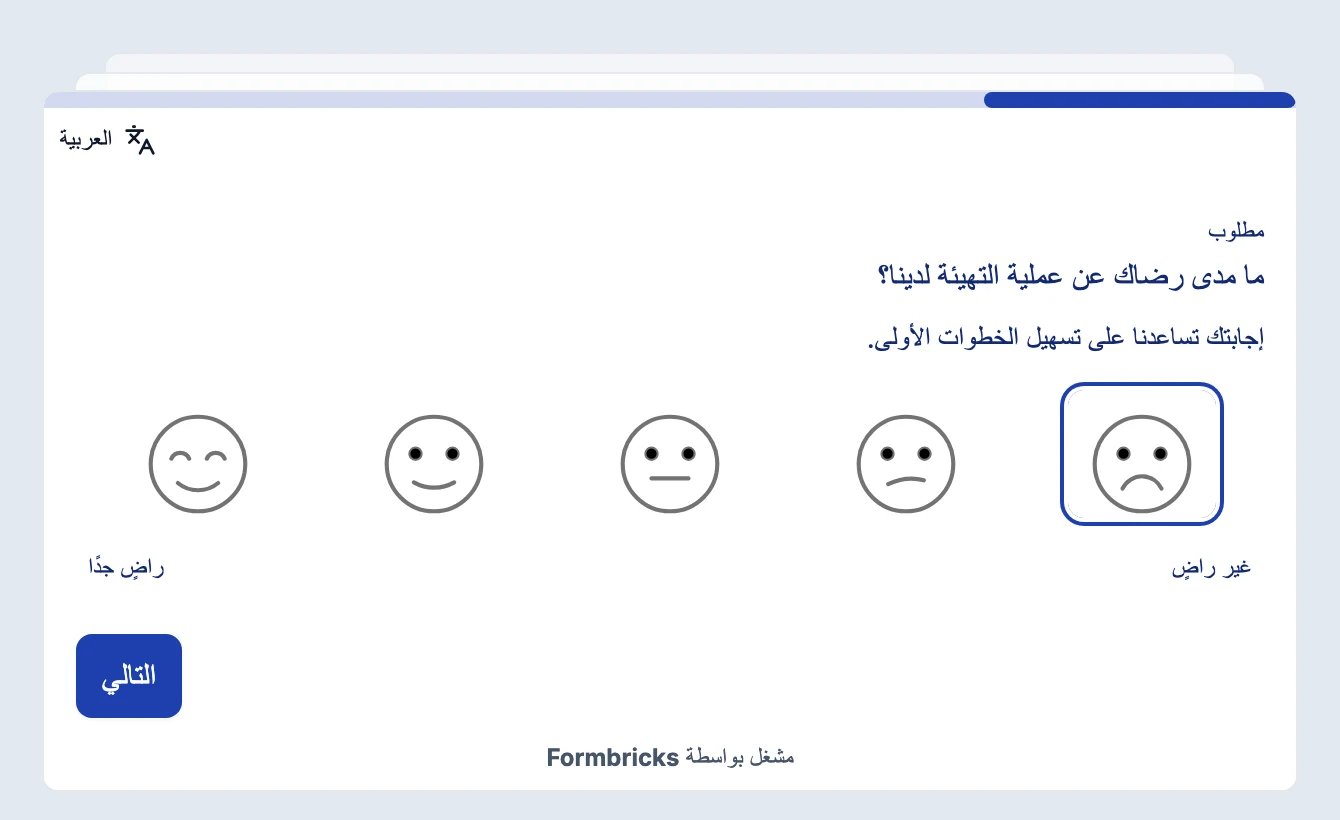
Built-in interface translations
Beyond the content you translate yourself, every survey ships with a set of built-in interface strings that Formbricks localizes automatically — so respondents see them in their own language without any extra work from you. These include:- Default navigation and action buttons (Back, Next, Finish)
- Form validation messages (e.g. “Please fill out this field”, “Please enter a valid email address”)
- File-upload prompts and states
- Offline, retry, and “sending responses” notices
- Attribution and helper labels like “Powered by” and “Required”
Formbricks matches the survey’s active language to the closest available bundle — for example,
de-AT and
de both use the German bundle, and pt-PT uses pt-BR. Writing script is preserved when matching, so
zh-Hant and zh-TW resolve to the Traditional Chinese bundle rather than the Simplified one. If a language
has no matching bundle, your translated survey content is still shown as usual, but these built-in interface
strings fall back to English.
Don’t see your language? These interface translations live in the open-source
@formbricks/surveys package.
You can add a new one by contributing a locale file on
GitHub.Analyzing multi-language responses
Every response records the language it was answered in, so you can:- Filter responses by Language on the summary and responses pages
- See the language of a single response on its response card
Need help? Reach out in Github Discussions