

Variables are the computed half of Embedded Data — the values the
survey works out for itself while the respondent answers. Nothing renames; see Hidden Fields &
Variables for what is new around them.
Types of Variables
There are two types of variables you can add to your survey:- Text: You can add text variables to your survey to capture text data.
- Number: You can add number variables to your survey to capture number data.
How to Add Variables
- Open the survey in the editor, stay on the Questions tab and scroll to the bottom. You will find the Embedded Data card.
- Choose Add field, then Create new field. Set the source to Calculated, give it a name, choose its type — text or number — and set a default value. Add as many as you need.
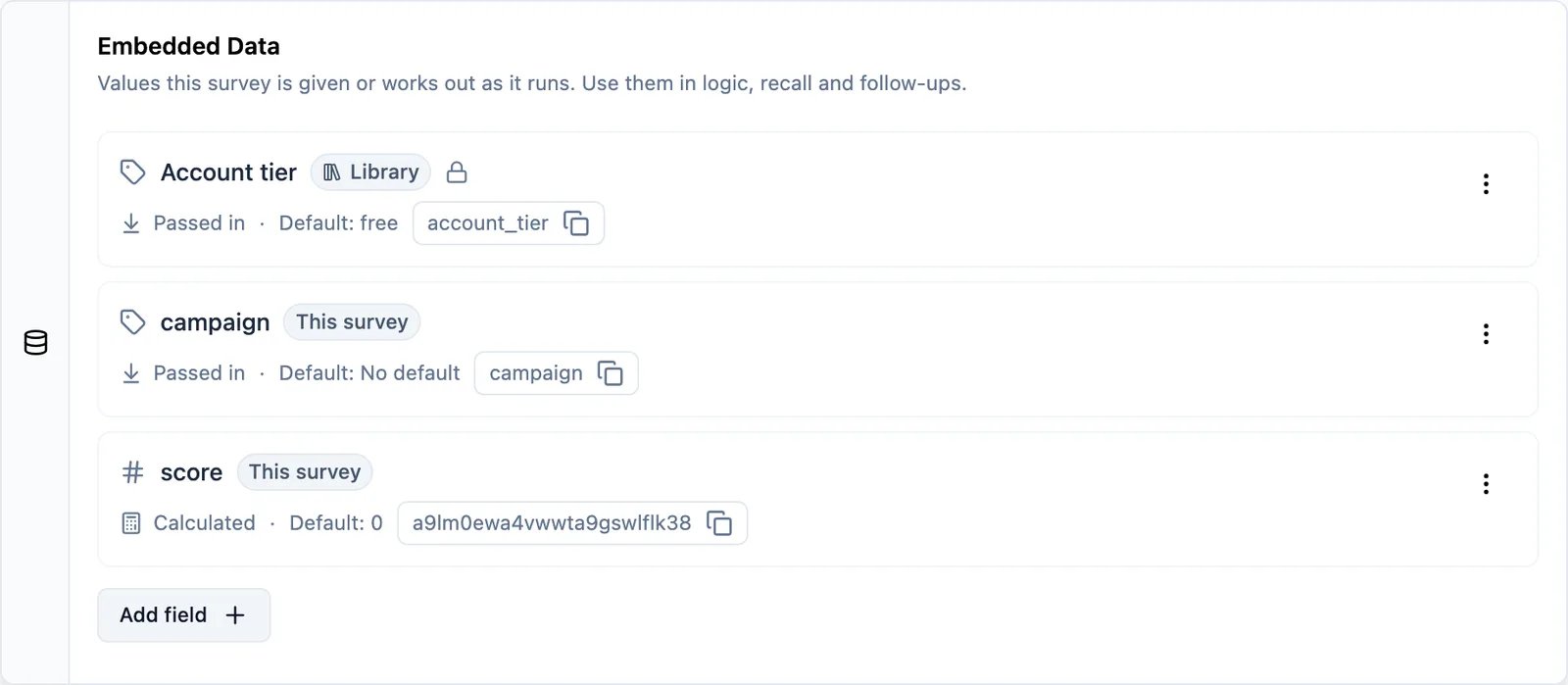
score row above is a calculated field: Calculated as its source, 0 as the value it starts at, and a generated address you never type.
Use cases
-
Quiz: You can use variables to create a quiz. For example, you can add a variable
scoreand update it every time a user answers a question. You can also use the variable for recall to show the final score to the user. -
Personalisation: You can use variables to store user data and personalise the survey experience. For example, you can add a variable
full_nameand update it every time a user fills in their first name and last name. You can use the variable to personalise the survey experience by addressing the user with their full name.
How is it different from Hidden Fields?
Variables are different from hidden fields in the following ways:- Setting: a passed-in field is filled from a URL parameter or the SDK; a calculated field can only be set at creation or updated by logic actions as the survey runs.
- Updating: Hidden fields cannot be set again, but the value of variables can be updated while the user fills the survey.
- Type: a passed-in field can be text, number, true/false or a date; a calculated field is text or number, the types survey logic can produce.
How to use Variables
- Once you have added the variables to your survey, you’ll be able to access them in the logic editor. You can use the variables to create logic actions and conditions.
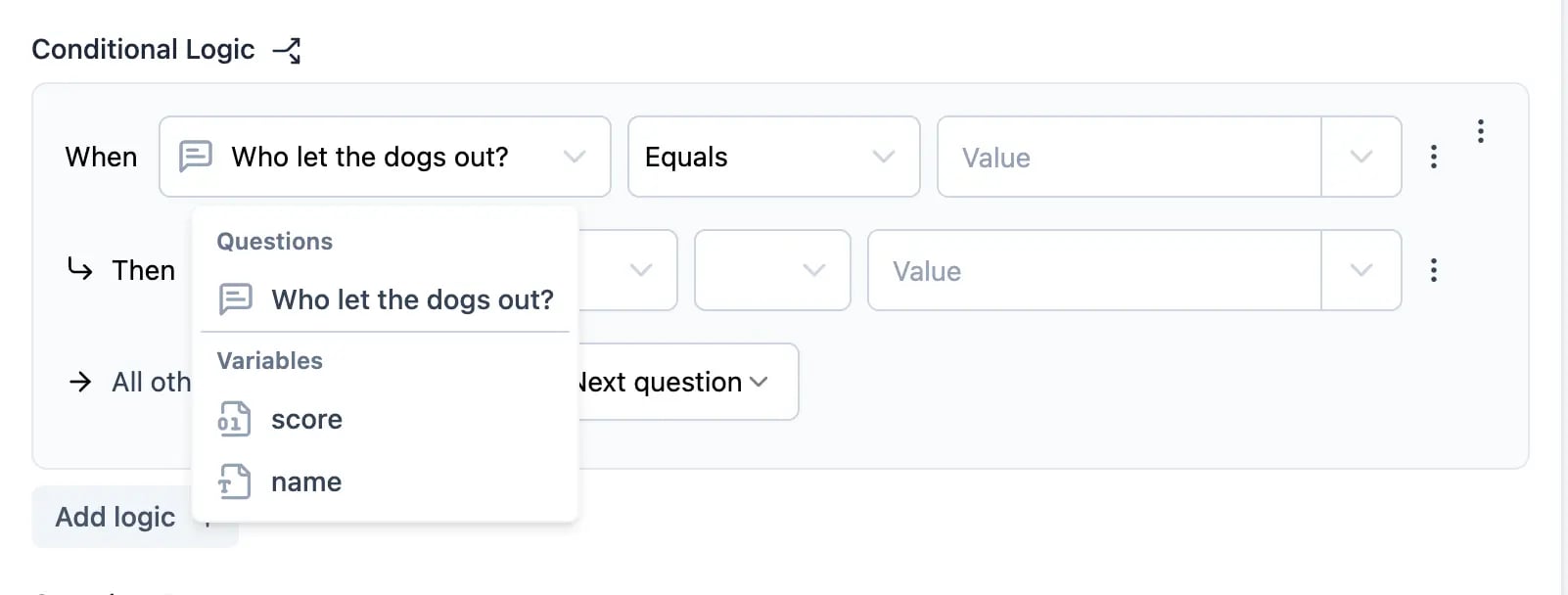
- You can create logic based on the variables and questions in your survey and can update the variables based on the user’s response.
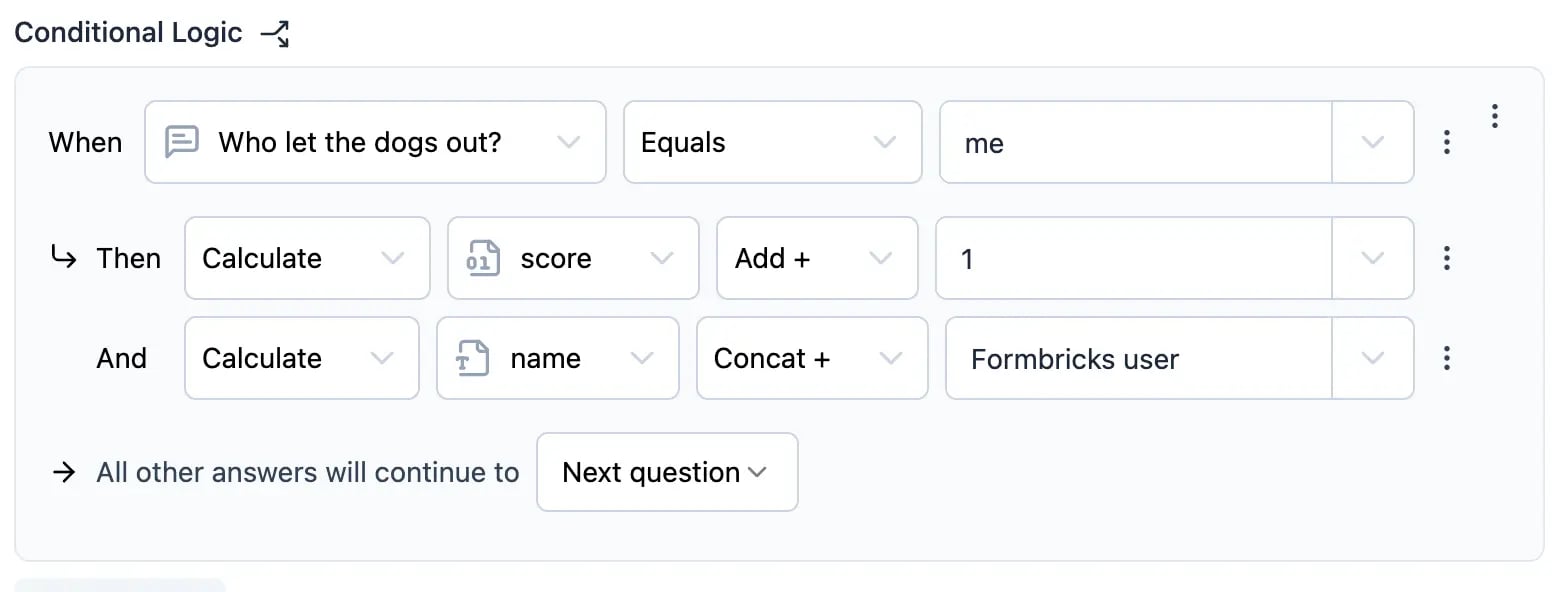
Recalling Variables in the Survey
You can recall show the variable value to the respondent by using the Recall Data function.To know more about how to use logic in Formbricks, check out the Conditional
Logic.